
This article gives an overview of Habitat HTML patterns and describes how you add patterns to a page.
Understand Habitat HTML Patterns
Patterns are the building blocks that make up your content. Patterns include headings, lists, images, and other elements. Some patterns combine multiple elements, like a titled section or row of images.
Your template contains patterns with pre-set elements, styles, and placeholder text and images, which enables you to efficiently author content that is consistently structured and styled. If you want to customize a pattern, like resizing a button or changing it color,
contact your Inkdoc administrator. A web developer in your organization can modify the
necessary configuration files. Your Inkling representative can also help your organization with template customization requests.
Note
- Not all templates contain all patterns.
- The available patterns for an Inkdoc depend on the date that the Inkdoc was created and the patterns that your Inkling Module Administrator maintains for the Inkdoc. The most recently created Inkdocs generally have the latest patterns.
- Your library of patterns is not automatically updated when Habitat is updated.
Open and Close the Add Pattern Sidebar
-
In the top bar, click Edit Content and select a page.
The Add Pattern sidebar appears on the right. If not, move your mouse pointer to the far right side of the screen, and the sidebar will slide into view.
- Close the sidebar by clicking the X icon in the upper-right corner.
- Click the cube icon to reopen the sidebar.
Add a Pattern to a Page
-
Hover your cursor over a pattern to view its preview. You can also use the Search patterns field to find a specific pattern.
- Click to select the pattern.
- Drag the pattern onto the page to the desired location. Habitat displays a green line when the location is valid.
- Release the mouse to add the pattern.
Sample Patterns
The patterns you add to your content are designed to complement the template you chose for the Inkdoc, so they may not look exactly like the samples you see below. See also Understand Habitat Patterns above.
Asides
An aside (or callout) is a side note used for important notes, questions, or tips. It will not appear in the reader’s Table of Contents.
The example below shows a sample Important aside.
Buttons
Buttons provide a large, clickable or tappable link to an external website or to a different page in your Inkdoc.
Code
Code patterns enable you to show code examples either in block form or inline with the content.
Equations
Equation patterns enable you to add math notation to a page. You can also paste LaTeX from your computer’s clipboard directly onto the page. Click an equation, and the element inspector appears as a blue box around it. Click the Change tab to open the Habitat equation editor.
Forms
Forms are user-editable fields. The image below shows a text field that text can be entered into.
Headers
Header patterns include chapter introductions and page titles. Headers usually contain an H1 heading element that matches the title of your page.
Each page can only have one header pattern. However, you can use multiple headings (H1 through H6). You can change the heading level in the toolbar.
Images
You can add patterns for single images, images with captions or numbers, and even multiple images in a row.
You can add images inline with the content. Use this pattern to show small images, such as icons, and describe their function.
You can add images to either side of a sentence or paragraph of text.
Adding an image pattern to your page opens the Add Image menu, where you can upload a new image or select an existing image from your Media Library.
Lists
Styled patterns for both numbered (ordered) and unordered lists are available. You can also create lists using the toolbar.
- First item
- Second item
- Third item
Media
Like images, adding an audio or video pattern launches a menu. You can upload an audio or video file or |embed a video from a third-party website like YouTube. Just select Enter a URL when adding a new video, and paste in the URL you'd like to embed.
For information about developing custom video players, see Use audio and Video.
Sections
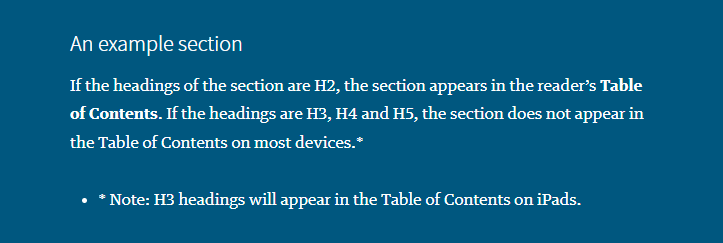
Sections are for extra or sidebar content, which are relatively small chunks of content that you want to style differently from the surrounding body text in a reader. This content is usually closely related to, but not integral to, the discussion in the body text.
Tables
Adding a new table pattern opens the Add Table menu, where you can set the number of rows and columns for your table. You can also add and remove rows and columns from the Table Options menu in the toolbar.
See Add and Edit Tables.
Text
Text patterns include paragraphs, quotes, drop caps, headings with rules, citations, and subtitles. Below are a few examples:
Widgets
A widget is an interactive element that lives in the page, so when end users read the content on the web or on mobile devices, they can interact with the widget as part of the main reading flow.
The Inkling widget library includes the following widgets:
- Annotated Image
- Assessment
- Flashcard
- Multiple Choice Quiz
- Show Hide
- Slideline
- Slideshow
- Timeline
See Add widgets for more information.