Important Considerations
- If SRT or VTT caption files have been uploaded for this video, the captions from those files will be used instead of real-time transcription.
- Real-time captions are not saved to the video - they are auto-generated each time the video is played.
- Real-time captions are not available for YouTube videos because YouTube controls captioning on its end.
- Real-time captions are available for Zoom recordings.
As part of our ongoing commitment to make our software accessible to all users, GoReact offers two ways to add captions to your videos:
- Real-time, auto-generated Closed Captions where the audio on your video is transcribed as it is being played.
- Uploaded Closed Caption or Audio Description files.
Real-Time Closed Captions
To enable real-time Closed Captions for a video, click on the gear icon in the lower-left corner of the playback screen and toggle the Subtitles / CC setting.
You may notice that as the text is displayed, it will correct itself based on the context of what is being said. This is normal and is part of the artificial intelligence-based technology used to display accurate text of the audio.
YouTube Captioning
When using a YouTube video in GoReact, caption behavior is shared between GoReact and YouTube.
If captions are enabled in GoReact, GoReact requests that YouTube display them when available. If captions are disabled in GoReact, GoReact does not request captions. However, YouTube may still display captions based on the viewer's YouTube preferences or the video's own caption settings.
The Disable source video closed captions activity setting only removes the caption controls within GoReact. It cannot prevent YouTube from displaying captions if YouTube determines they should be shown.
Because YouTube controls the final caption behavior for embedded videos, GoReact cannot guarantee that captions will never appear on a YouTube video. If this happens, you will need to download the video and upload it directly to have control over closed captioning.
Upload Closed Caption or Audio Description Files
Closed Caption (CC) or Audio Description (AD) files can be added to any video in the library:
- Any videos in the library
- Any videos that are recorded or uploaded by learners
It is not possible to add captions to video comments that are uploaded or recorded—only video comments that are stored in the library.
For information on supported file types for Closed Caption or Audio Description files, see Supported file types.
Follow these steps to upload your own captions or audio description files to a video.
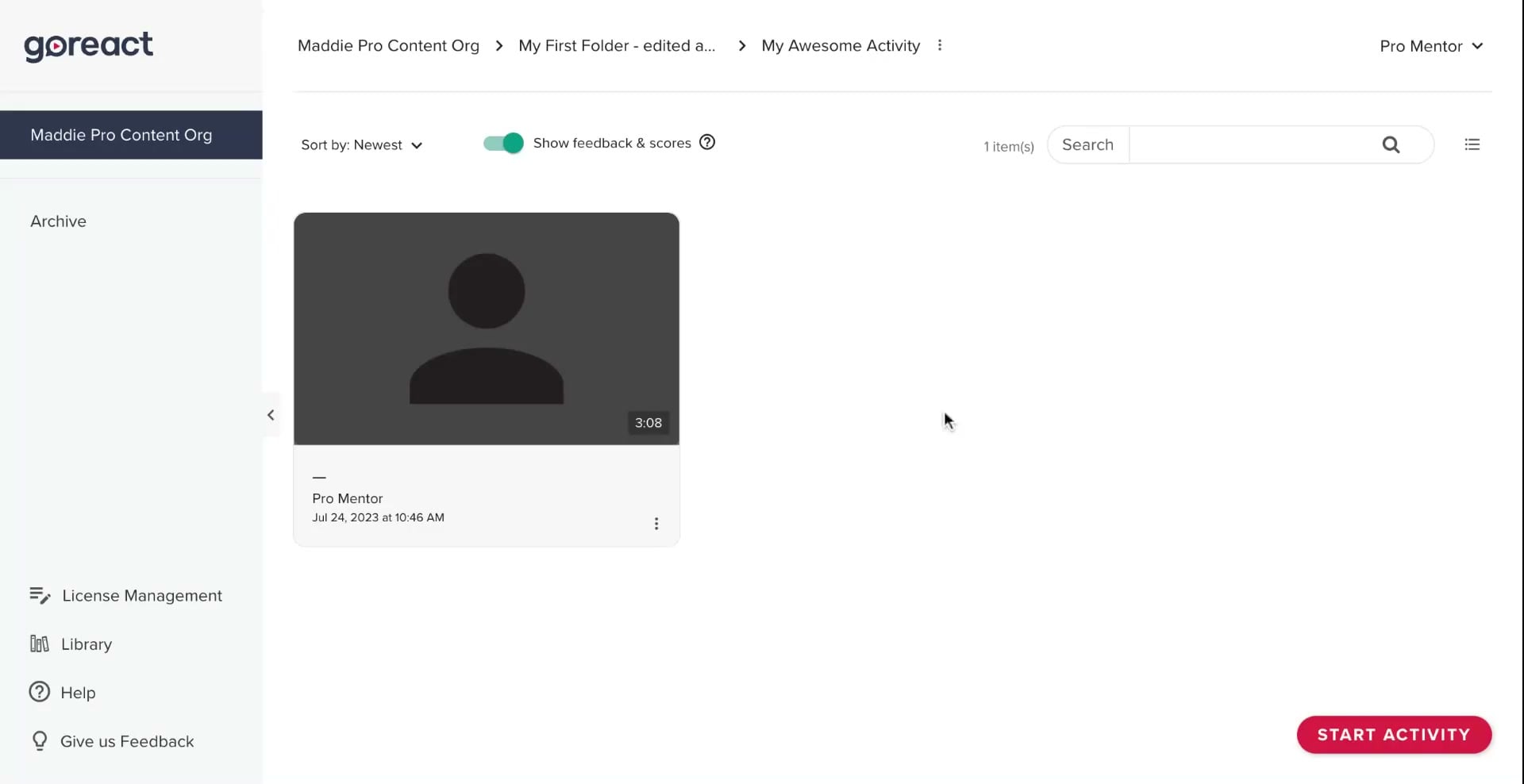
- Navigate to the video that you wish to add captions or an audio description to. (Either in the library or assignment settings for instructors or on an assignment video for both students and instructors.)
- Click the vertical ellipses button next to the video and select Edit, or click the Edit button in the assignment settings.
- Click + Captions or + Audio Description, whichever file type you want to add.
- Select the appropriate file from your computer, then click Start to upload it.
Video